
📲 Install Our Web App
Add Terra Smart Lighting
to Your Home Screen
Get fast access to our website directly from your phone’s Home screen. No App Store or Google Play download is required.
Install on Samsung
Use Google Chrome
1
Open Google Chrome
Open the Chrome browser on your Samsung phone.
2
Visit Our Website
Go to
terrasmartlighting.com
.
3
Wait for the Install Message
After a few seconds, Chrome may display an
“Install app” message.
4
Tap “Install”
Confirm the installation when the second message appears.
5
Find the TSL Icon
Terra Smart Lighting will appear on your Home screen like
a regular app.
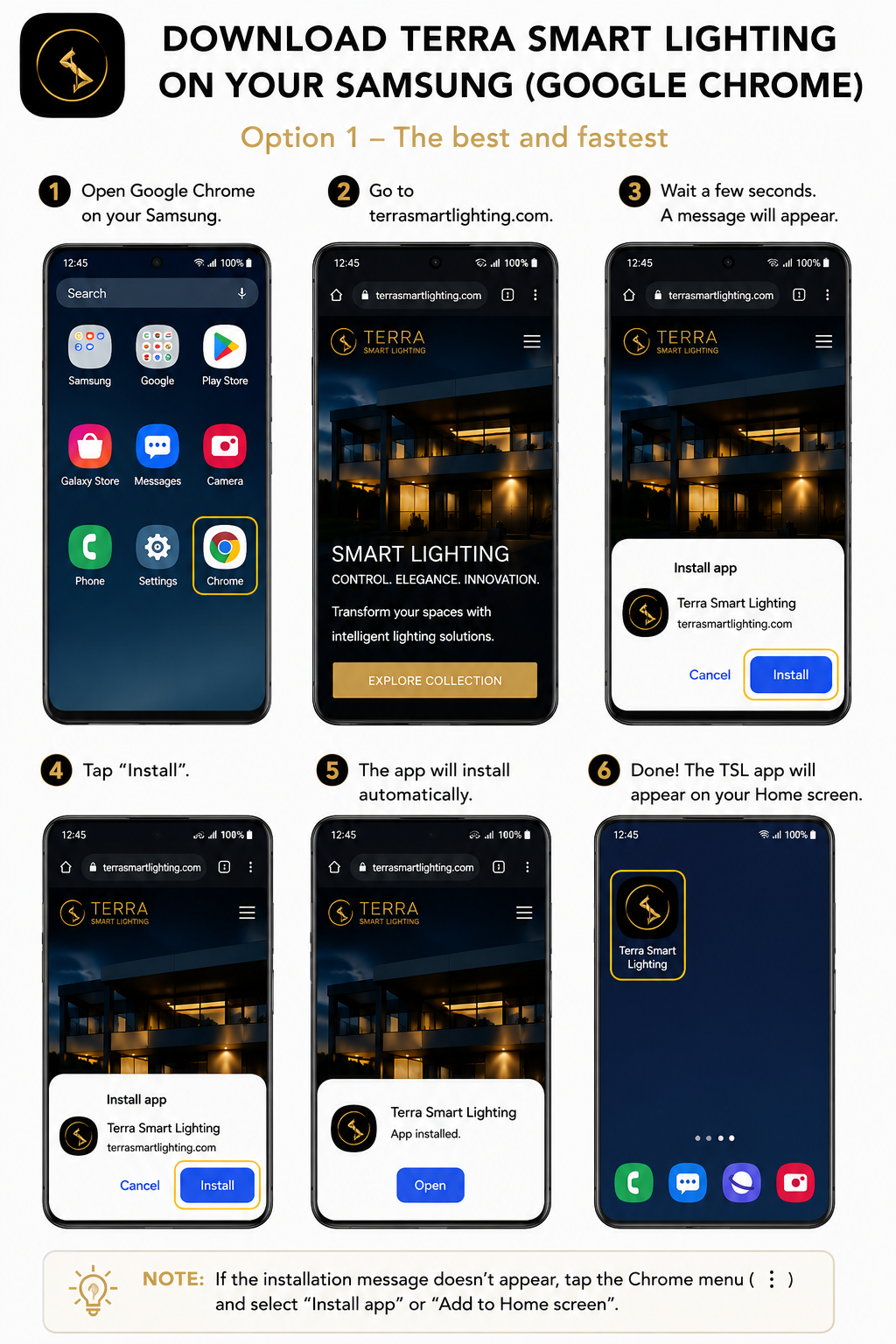
Don’t see the installation message?
Tap the three-dot Chrome menu in the upper-right corner and select
“Install app” or
“Add to Home screen.”
Install on iPhone
Use Safari
1
Open Safari
Open Safari on your iPhone. Do not use Chrome for this process.
2
Visit Our Website
Go to
terrasmartlighting.com
.
3
Tap the Share Button
Tap the square icon with the upward arrow at the bottom
of Safari.
4
Select “Add to Home Screen”
Scroll down through the sharing options and select
“Add to Home Screen.”
5
Tap “Add”
Confirm the app name and tap “Add” in the upper-right corner.
6
Open the TSL App
The Terra Smart Lighting icon will appear on your Home screen.
Important:
On iPhone, you must open the website using
Safari. The “Add to Home Screen” option may not
appear correctly in other browsers.